Educational Tools

Blogging for Kids
My middle son is currently posting to his own blog. http://www.kristopherskingdom.com/ He has been creating it completely on his own and doing a great job! He has a story he has written that he is currently sharing (under story on the right). Each week on Friday...
Kiss My Math (Danica McKellar)
I wanted to remind everyone about the set of books by Danica McKellar. Ms. McKellar is probably the only person on prime-time tv that moonlights as a math tutor. Check out her website at http://www.kissmymath.com/ - and the book by the same name. She...

Breakout Part 7 (Adding a Score)
Our first step to add a score to our program is to reopen our project from yesterday. We need to work with the Ball object, so we will double click on the ball object. Now on the far right there is a tab for score. Selecting the score tab makes the objects that work...
Owlie Boo
owlieboo - Owlie Boo is an entertaining way for them to learn the names and sounds of animal and, at the same time, to learn to use a computer responsibly. Fun simple computer games that can be handled by toddlers and young children: by just pressing any key,...
Breakout Part 6 (Moving the Ball)
Today we will add actions to our Ball. First we need to reload our program from our saved file. You should then be back where we left off. If you can't see the list of objects on the left, use the plus sign to the side of objects to expand it and then double click...
Breakout Part 5 (Add Actions for Our Bat)
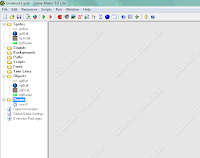
Now we get to start adding actions to our objects. Yeah! First you will need to reload where we left off. You should have Sprites, Objects, and your Room set up. Our objective is to move the bat left and right with the left and right arrow keys. Set up from Part 4...
Breakout Part 4 (Designing our Room)
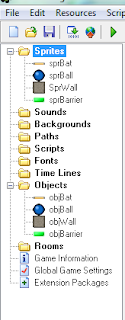
Today we are going to continue working on our game of Breakout. It will take shape by the end of this activity and be ready for us to add actions to the objects. Start by reloading the project that you saved at the end of the last Part. You should see your Sprites...
Breakout Part 3 (Object Creation)
Today we are going to move on to creating the object to go with our sprites (graphics). The object will later be associated with actions. (Like making the ball start moving. Objects are one of the choices on the left. If you have saved last time and are coming back...
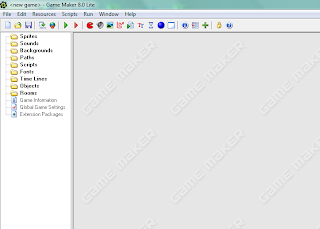
Breakout Part 2 (Sprite Creation)
When you start up Game Maker 8.1 you will see a screen like: We now need to add 4 sprites (graphics) for our game. For Breakout we will need: 1. Bat 2. Ball 3. Barrier 4. Wall These will be added as objects in the next lesson and then added to the 'room'...
Subscribe to The Newsletter
Tech Ed 4
Kids
, Want to Contribute? Donations, join our board or Contribute articles…